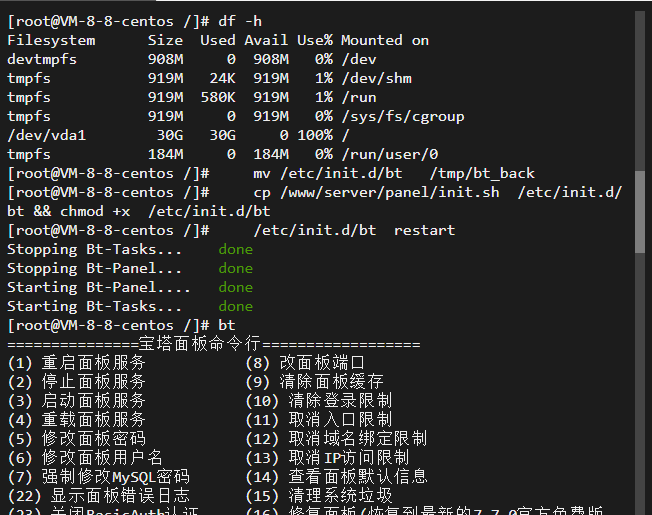
When the server's hard drive is full, it may cause the system to become unstable or fail to function properly. Insufficient disk space can also affect the normal operation of the Baota Panel. Here are several possible solutions:
- Free up disk space: Remove unnecessary files and log files to free up disk space, which will allow the Baota Panel to restart. You can do this by
SSHLog in to the server and use it.df -hUse the `du-sh /path/to/directory` command to check the disk usage of a specific directory, and then delete unnecessary files or back them up to another location. - Move Database: If your database is consuming a large amount of disk space on one hard drive, you can move it to another hard drive or partition. You can use this feature.
mysqldumpRun the command to export the database, then import it to another location. During this process, you can temporarily disable the database service to free up some disk space. - Expand disk capacity: If your hard drive has insufficient storage space, you can expand it to a larger capacity; however, this should be implemented in accordance with your server architecture and the policies of your cloud service provider.
- Restart the server: If the Baota Panel does not start properly, you can try restarting the server to clear memory and other unnecessary resources. After that, you can attempt to access the Baota Panel again.
Please note that before performing the above operations, you should ensure you have backed up your important data to mitigate the risk of data loss.
Method: First, delete some log files, then restart the Baota Panel.
在 Linux Can be used above. find Use the command to search for and delete all log files. Here are the steps to clear all log files:
Open the terminal and log in to Linux system.
Use the following command to search for and list all log files:
sudo find /var/log -type f -name "*.log"This will happen. /var/log Search all files with the.log extension in the current directory and its subdirectories, then list them.
Please confirm that the list of output files contains all the log files you wish to delete. If you are unsure, proceed with caution.
Use the following command to delete all log files:
sudo find /var/log -type f -name "*.log" -deleteThis will happen. /var/log Search all files in the directory and its subdirectories with the specified extension. .log Delete all the files.
Wait for the command execution to complete.
Please note that this command will delete all files in the system with the specified extension. .log The document includes system and application logs. If you only wish to delete logs for a specific application or service, change the search path in the command to point to the log directory for that application or service. Additionally, ensure you back up all important log files before running this command to avoid accidentally deleting critical data.
Restart Pagoda
mv /etc/init.d/bt   /tmp/bt_back
cp /www/server/panel/init.sh  /etc/init.d/bt && chmod +x  /etc/init.d/bt
/etc/init.d/bt  restart
That's all!